
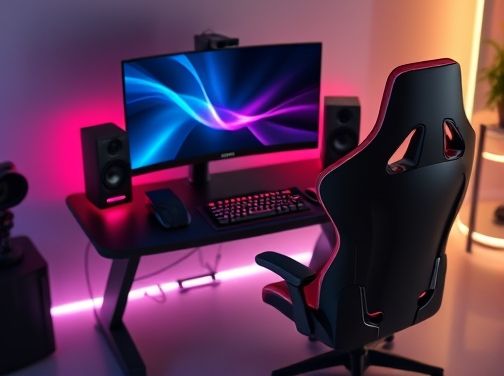
Choosing a Gaming Monitor
When you’re ready to upgrade your gaming rig, the monitor is often the most critical component that can make or break your experience. A great display not only delivers stunning visuals but also keeps you immersed and competitive. However, with so many options on the market—from ultra‑high refresh rate panels to curved ultrawide screens—deciding which one suits your needs can feel overwhelming. Below are the key factors to weigh before making a purchase.
1. Refresh Rate
The refresh rate is measured in hertz (Hz) and indicates how many times per second the screen updates its image. For fast‑paced games such as first‑person shooters or racing titles, higher refresh rates translate into smoother motion and less input lag.
- 60 Hz: Adequate for casual gaming and older titles.
- 144 Hz: The sweet spot for most competitive gamers; offers a noticeable improvement over 60 Hz.
- 240 Hz & above: Ideal for eSports professionals or enthusiasts who demand the absolute smoothest experience.
Keep in mind that your graphics card must be capable of driving frames at these rates; otherwise, you’ll see diminishing returns.
2. Response Time and G-Sync/FreeSync Compatibility
The response time, expressed in milliseconds (ms), reflects how quickly a pixel can change from one color to another. Lower values reduce motion blur and ghosting—an essential consideration for action‑heavy games.
- Typical good range: 1 – 5 ms.
- Higher-end monitors often feature adaptive sync technologies like NVIDIA’s G-Sync or AMD’s FreeSync, which eliminate screen tearing by synchronizing the display refresh rate with your GPU output.
If you’re using a mixed‑brand system (e.g., an NVIDIA card with a FreeSync monitor), most modern GPUs support both standards via “G-Sync Compatible” mode, but performance can vary.
3. Panel Type and Color Accuracy
The underlying panel technology affects contrast, color reproduction, and viewing angles:
- TN (Twisted Nematic): Fastest response times, lower costs; limited viewing angles and color fidelity.
- IPS (In-Plane Switching): Excellent color accuracy and wide viewing angles; slightly slower response but increasingly common in high‑refresh monitors.
- MVA (Multi‑Domain Vertical Alignment): Balanced between TN and IPS, offering good contrast ratios with moderate colors.
For gamers who also stream or edit video, an IPS panel may be preferable to ensure consistent color across different devices.
4. Resolution and Screen Size
The resolution determines pixel density and clarity:
- 1080p (Full HD): Best for entry‑level setups or very small monitors; requires less GPU power.
- 1440p (Quad HD): Provides a sharper image without demanding as much from the GPU as 4K, making it popular among mid‑range gamers.
- 2160p (4K UHD): Ultra‑sharp but demands high-end GPUs; often paired with lower refresh rates due to bandwidth constraints.
When pairing size and resolution, aim for a pixel density of at least 100 ppi for crisp visuals. A 27‑inch monitor at 1440p or a 32‑inch monitor at 1080p can both deliver excellent image quality.
5. Connectivity Options
Your monitor should support the ports you need:
- HDMI 2.1: Future‑proof and supports higher resolutions/refresh rates.
- DisplayPort 1.4: Widely used for high‑performance gaming; essential for G-Sync monitors.
- DVI & VGA: Legacy options that may be useful if you have older hardware.
- USB hubs: Convenient for connecting peripherals directly to the monitor.
Check that your GPU has compatible outputs before purchasing a monitor with specific ports.
6. Ergonomics and Design Features
A comfortable setup enhances long gaming sessions:
- Adjustable stand (height, tilt, swivel): Allows you to find the most ergonomic posture.
- VESA mount compatibility: Enables wall mounting or using a multi‑monitor arm.
- Curved vs. flat display: Curved screens can provide immersive depth but may introduce distortion at extreme angles.
- Low blue‑light and flicker‑free technologies: Reduce eye strain during extended play.
7. Budget and Value Perception
Monitors range from under $200 to well over $1,000. Prioritize features that directly impact your gameplay—such as refresh rate and adaptive sync—over purely aesthetic choices if you’re on a tight budget. Look for sales, bundle deals, or refurbished models to stretch your dollar further.
Conclusion
Selecting the right gaming monitor involves balancing performance, visual fidelity, ergonomics, and cost. By evaluating each factor against your personal preferences and hardware capabilities, you can find a display that not only meets but exceeds your expectations—turning every game into an unforgettable experience.
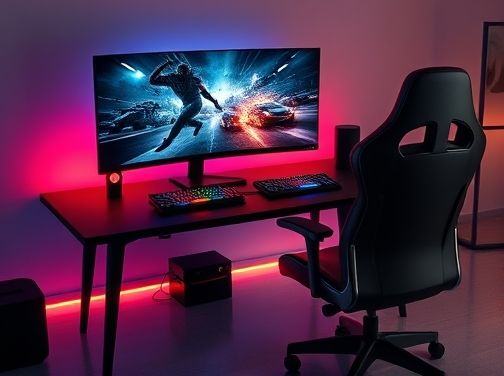
Choosing a Gaming Monitor
Resolution, Refresh Rate, and Response Time: What You Need to Know
Why These Specs Matter
When you’re hunting for the perfect gaming monitor, three technical terms dominate the conversation: resolution, refresh rate, and response time. Each of these factors plays a distinct role in how sharp, smooth, and responsive your gaming experience feels.
Resolution – The Detail You See
Resolution is measured in pixels (e.g., 1920×1080). It determines how many individual points of light compose the image. Higher resolution yields more detail, allowing you to see finer textures and clearer text. For casual gamers on a budget, Full HD (1080p) offers solid performance. However, if you’re into competitive titles or want a cinematic look, 1440p (Quad HD) provides a noticeable improvement without demanding as much GPU power as 4K.
Refresh Rate – How Often the Image Updates
The refresh rate, measured in hertz (Hz), indicates how many frames per second the monitor can display. A higher refresh rate translates to smoother motion and less motion blur. Standard monitors run at 60 Hz, which is adequate for most games but can feel choppy in fast-paced shooters or racing titles. Gaming‑centric displays typically offer 144 Hz or even 240 Hz, giving you a competitive edge by reducing input lag and allowing your movements to appear more fluid.
Response Time – How Quickly Pixels Change
Response time is the duration it takes for a pixel to transition from one color to another, usually expressed in milliseconds (ms). Lower response times (1–5 ms) mean less ghosting—those lingering trails that can obscure fast-moving objects. In action games where split‑second reactions matter, a 1 ms response time is ideal. Conversely, higher response times may result in noticeable smearing during rapid scene changes.
Balancing the Three for Your Needs
Finding the right mix depends on your play style, hardware, and budget. Below is a quick guide to help you decide:
- Competitive esports player: Prioritize 240 Hz refresh rate with <1 ms response time; resolution can be 1080p if GPU power is limited.
- Hardcore AAA gamer: Aim for 144 Hz, 1440p resolution, and a response time of 2–4 ms to enjoy high‑quality visuals without compromising fluidity.
- Everyday casual gamer: A 60 Hz monitor at 1080p with a 5 ms response time will provide an affordable, solid experience.
Consider Your GPU
Your graphics card determines how many frames per second you can actually achieve. Even the best 240 Hz monitor will be underutilized if your GPU cannot push enough frames to match that rate. Pairing a high‑refresh display with a capable GPU ensures you get the performance benefits you pay for.
Future Proofing
If you anticipate upgrading your hardware or want to stay current, consider buying a monitor that supports higher resolutions and refresh rates than you immediately need. Many modern displays also offer adaptive sync technologies like G-Sync or FreeSync, which synchronize the screen’s refresh rate with the GPU’s output to eliminate tearing.
Final Thoughts
Resolution, refresh rate, and response time are not just technical jargon; they directly shape how immersive, responsive, and enjoyable your gaming sessions feel. By understanding each metric and aligning it with your specific needs and hardware capabilities, you can select a monitor that elevates both performance and pleasure.

Choosing a Gaming Monitor
Panel Types Explained: TN vs IPS vs VA for Gaming
The Core of a Display: How Panels Work
Every monitor is built around a liquid crystal display (LCD) panel, and the type of panel determines key attributes such as color accuracy, viewing angles, response time, and contrast. For gamers, these factors translate directly into how smooth gameplay feels and how visually immersive it becomes.
1. Twisted Nematic (TN)
- Speed is king: TN panels have the lowest response times—often 0.5 ms to 1 ms—which means motion blur is minimal. This makes them ideal for competitive shooters and eSports titles where split‑second reactions matter.
- Color & angle trade‑offs: The color gamut on TN panels is usually limited (≈72–85% of sRGB), and colors shift noticeably when viewed off‑center. For games with vibrant art styles, this can reduce visual fidelity.
- Cost advantage: TN monitors are typically the most affordable, allowing gamers to build a high refresh rate setup without breaking the bank.
2. In‑Plane Switching (IPS)
- Color excellence: IPS panels cover up to 96–100% of sRGB and often reach 95–98% Adobe RGB, delivering richer hues and more accurate color reproduction—great for RPGs, open‑world titles, and streaming content.
- Wide viewing angles: Because the liquid crystals slide parallel to the screen, colors stay consistent even when viewed from sharp angles. This is a bonus for multiplayer sessions where multiple players may sit side‑by‑side.
- Response time & contrast: Historically IPS panels had slower response times (≈4–8 ms) and lower contrast ratios compared to TN or VA, which could introduce ghosting in fast action. However, recent IPS models now hit 1–2 ms and boast improved backlight uniformity.
- Price point: Generally more expensive than TN but still competitive with high‑end VA panels when you factor in the premium for color performance.
3. Vertical Alignment (VA)
- Contrast supremacy: VA panels excel at delivering deep blacks, with contrast ratios often exceeding 2000:1. This enhances immersion in dark scenes and improves overall image depth.
- Color & angle middle ground: Color reproduction sits between TN and IPS (≈70–85% sRGB), and viewing angles are better than TN but not as wide as IPS.
- Response time considerations: VA panels can suffer from slower response times (≈4–6 ms) and a phenomenon called “ghosting” or “blur,” especially at lower refresh rates. However, high‑refresh‑rate VA models are now available with reduced motion blur.
- Best for casual & immersive play: If you enjoy narrative games, cinematic experiences, or just want the best black levels without needing ultra‑fast response, VA is a solid choice.
Choosing the Right Panel for Your Gaming Needs
The decision often comes down to your primary use case:
- Competitive eSports / FPS: TN or high‑refresh IPS with 1 ms response times. Prioritize speed over color.
- Story‑rich, visually stunning games: IPS for color fidelity and wide angles; VA if you also value deep blacks and don’t mind slightly slower motion handling.
- Budget‑conscious builds: TN offers the lowest cost per performance ratio, especially when paired with a high refresh rate.
Regardless of panel type, look for features like G-Sync/FreeSync compatibility, HDR support, and an ergonomic stand. By matching panel strengths to your gaming style, you’ll enjoy both visual brilliance and competitive edge in equal measure.
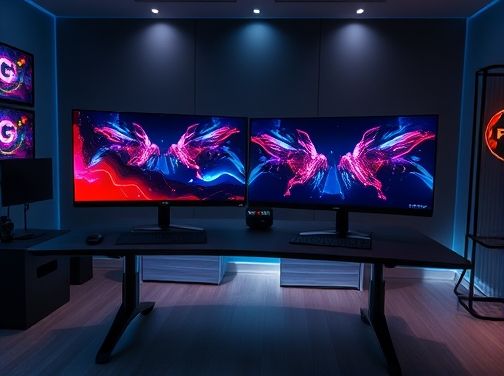
Adaptive Sync Technologies: G‑Sync, FreeSync, and Beyond
When selecting a gaming monitor, one of the most critical factors that can elevate your experience is the display’s ability to synchronize its refresh rate with your graphics card’s output. This technology, known as Adaptive Sync, eliminates screen tearing, reduces stutter, and ensures fluid gameplay even at high frame rates. In this section we’ll dissect the two leading adaptive sync standards—NVIDIA’s G‑Sync and AMD’s FreeSync—while also touching on emerging solutions that promise to broaden compatibility and performance.
Understanding the Basics
Traditional monitors operate at a fixed refresh rate, typically 60 Hz or 144 Hz. When a GPU produces frames faster than this rate, parts of multiple frames can be displayed simultaneously, causing tearing. Adaptive Sync solves this by allowing the monitor’s refresh cycle to match the GPU’s frame delivery in real time.
G‑Sync: Proprietary Per‑Panel Synchronization
- Hardware Module: G‑Sync requires a dedicated NVIDIA module embedded in the panel, ensuring tight integration and reliable performance.
- Low Latency: The module handles signal timing internally, resulting in minimal input lag—essential for competitive play.
- Quality Assurance: NVIDIA rigorously certifies G‑Sync monitors, guaranteeing a consistent tear-free experience across all supported models.
- Limitations: The cost of the module increases price points, and only NVIDIA GPUs can fully leverage the feature.
FreeSync: Open Standard for Broad Compatibility
- VESA Adaptive Sync: FreeSync is built on the VESA DisplayPort Adaptive-Sync standard, making it natively supported by a wide array of monitors and GPUs.
- No Dedicated Module: Without an additional hardware component, FreeSync panels are typically cheaper to produce and purchase.
- Variable Refresh Range: Manufacturers can set the lower bound of the refresh range (e.g., 30 Hz to 144 Hz), offering flexibility for different use cases.
- Potential Variability: Because the standard is open, some monitors may deliver less consistent performance or exhibit higher latency compared to G‑Sync.
Hybrid and Emerging Solutions
- NVIDIA’s G‑Sync Compatible: This certification allows non-G‑Sync panels that meet certain FreeSync specifications to work with NVIDIA GPUs, bridging the gap between the two ecosystems.
- AMD’s Radeon™ FreeSync Premium Pro: Adds HDR support and a higher minimum refresh rate (typically 120 Hz) for an elevated visual experience.
- DisplayPort 2.0 & HDMI 2.1: Newer specifications promise higher bandwidth, enabling simultaneous support of high resolution, high frame rates, and adaptive sync in the same cable.
- Third‑Party Enhancements: Some manufacturers incorporate proprietary technologies (e.g., Samsung’s “Adaptive Sync”) to further reduce latency or improve color accuracy.
Choosing Between G‑Sync and FreeSync
- GPU Compatibility: If you own an NVIDIA card, G‑Sync offers the most reliable experience. For AMD GPUs, FreeSync remains the default choice.
- Budget Considerations: G‑Sync monitors are generally pricier due to the hardware module; FreeSync panels provide excellent value for gamers on a tighter budget.
- Feature Set: Look for FreeSync Premium Pro if HDR is important, or consider G‑Sync’s “Ultra” variants that support higher refresh rates and wider color gamuts.
- Future Proofing: With the growing adoption of hybrid certifications, a monitor labeled as “G‑Sync Compatible” can serve both ecosystems, offering flexibility if you switch GPUs later.
Beyond the Basics: What to Look For in an Adaptive Sync Monitor
- Refresh Rate Range: A broader range (e.g., 30 Hz–240 Hz) ensures smooth performance even during low frame‑rate dips.
- Response Time & Input Lag: Look for panels with <1 ms response time and sub‑10 ms input lag for competitive play.
- Panel Type: IPS panels deliver better color accuracy, while VA offers deeper blacks. OLED is emerging but still niche.
- HDR Support: HDR-compatible adaptive sync monitors provide a richer visual experience for games that support high dynamic range.
In summary, adaptive sync technologies are indispensable for modern gaming monitors. Whether you opt for the proprietary reliability of G‑Sync or the cost-effective flexibility of FreeSync—and its evolving hybrid certifications—ensures that your display keeps pace with the GPU’s output, delivering a seamless and immersive gaming experience.
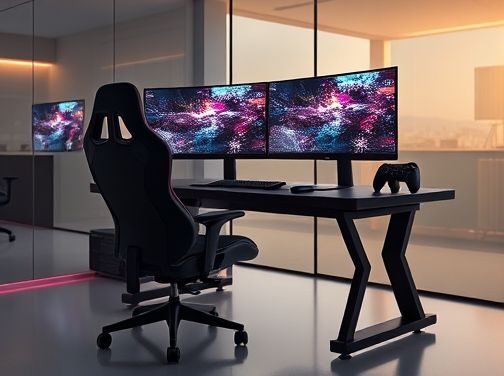
Choosing a Gaming Monitor
Ergonomics and Design Features That Enhance Gameplay
When it comes to gaming, the monitor is often considered the window into another world. Beyond raw resolution and refresh rate, a well‑designed screen can dramatically improve comfort, reduce fatigue, and even influence performance. In this section we explore the ergonomics and design features that elevate gameplay from merely playable to truly immersive.
1. Adjustable Stand – Height, Tilt, Pivot & Swivel
- Height Adjustment: The ability to raise or lower the screen keeps your eyes at a natural level, preventing neck strain during long sessions.
- Tilt (±20°): Tilting forward or backward lets you find the optimal viewing angle for ambient lighting and glare reduction.
- Pivot (90°): Rotating the display between landscape and portrait modes is essential for design work, document editing, or certain RPGs that benefit from a taller field of view.
- Swivel (±90°): Swiveling allows multiple users to share the screen without compromising ergonomics.
2. Built‑In VESA Mount Compatibility
A monitor with a 100 × 100 mm or 75 × 75 mm VESA mount opens up wall mounting, multi‑monitor rigs, and desk‑mount solutions. This flexibility ensures you can set the screen at eye level regardless of desk height or office layout.
3. Ergonomic Footprint – Slim Profile & Cable Management
A slim bezel not only looks modern but also reduces the overall footprint on your desk, freeing space for peripherals and reducing clutter. Integrated cable management channels keep wires tidy, preventing accidental pulls that could damage connections or cause a sudden drop in signal.
4. Eye‑Comfort Technologies
- Blue Light Filter: Dimming the blue spectrum lowers eye strain, especially during late‑night gaming marathons.
- No‑Glare Coating: A matte finish disperses ambient light, preventing harsh reflections that can distract or distort colors.
- Low Flicker Mode: Many manufacturers now include flicker‑free backlighting to reduce headaches and migraines associated with high refresh rates.
5. Adaptive Sync – G-Sync & FreeSync
Adaptive sync synchronizes the monitor’s refresh rate with your GPU, eliminating tearing and stutter. This smoothness not only looks better but also reduces the micro‑adjustments your eyes must make, contributing to a more comfortable visual experience.
6. High Color Accuracy & HDR Support
A wide color gamut (e.g., 100 % DCI-P3) and HDR capability bring richer visuals that can be perceived as more realistic. The brain processes these subtle differences efficiently, reducing the cognitive load needed to interpret scene depth and detail.
7. Customizable Profiles & Shortcuts
Gaming monitors often feature on‑screen menus or companion software where you can save multiple profiles—each tailored for different genres or lighting conditions. Quick‑access buttons let you switch between “FPS,” “RPG,” or “Movie” modes without leaving the game.
8. Connectivity & Port Density
Multiple HDMI 2.1, DisplayPort 1.4, and USB-C ports ensure future‑proof connectivity. USB hubs built into the monitor reduce desktop clutter and keep peripherals within arm’s reach.
9. Acoustic Feedback – Built‑In Speakers
While not essential for every gamer, integrated speakers with decent bass response can enhance immersion without necessitating external audio setups—ideal for quick play or when space is limited.
10. Durability & Build Quality
A robust chassis made from aluminum or high‑grade plastics withstands the rigors of daily use and accidental bumps. A strong stand that resists wobble even at full height is a sign of quality engineering.
In summary, ergonomics and thoughtful design elevate a gaming monitor from a simple display to an integral part of the gaming ecosystem. By prioritizing adjustable stands, eye‑comfort features, adaptive sync, and connectivity options, you create a setup that not only looks good but also supports your health and performance over countless hours of play.